How it works
Add it. Label it. Track it.
Three steps take an item from your shelf to its next job, and back. Here is what you do at each one, and what GearDomain does for you.
Step 1 of 3
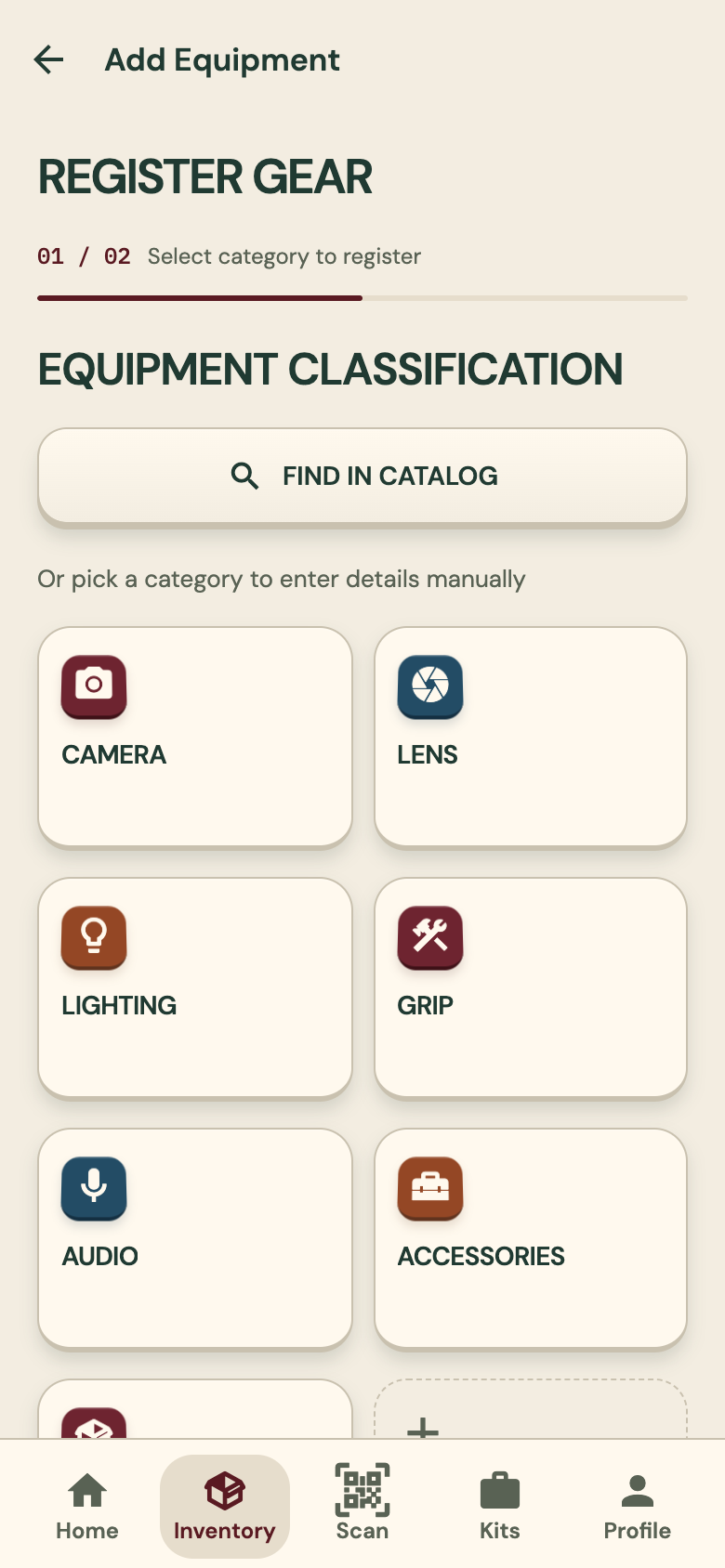
Add your gear
What you do
Say or type a list with Talk to Inventory. Or add one item at a time: find it in the gear catalog, or pick a category and enter the details yourself.
What happens
Each item in a list becomes a card. You check the cards and import the whole list at once. Brand and model are filled only from a catalog match; a serial or notes are yours to add.
- “I have a Sony 20 mm 1.8 and a Sony 40 mm 2.5” gives two cards, both Lens
- “2x Sandbag” gives two sandbags
- Categories are picked for you from the words; you can change them
Step 2 of 3
Label it
What you do
Print label sheets as PDFs and stick one label on each item. On Android phones that have NFC, you can use NFC tags as well.
What happens
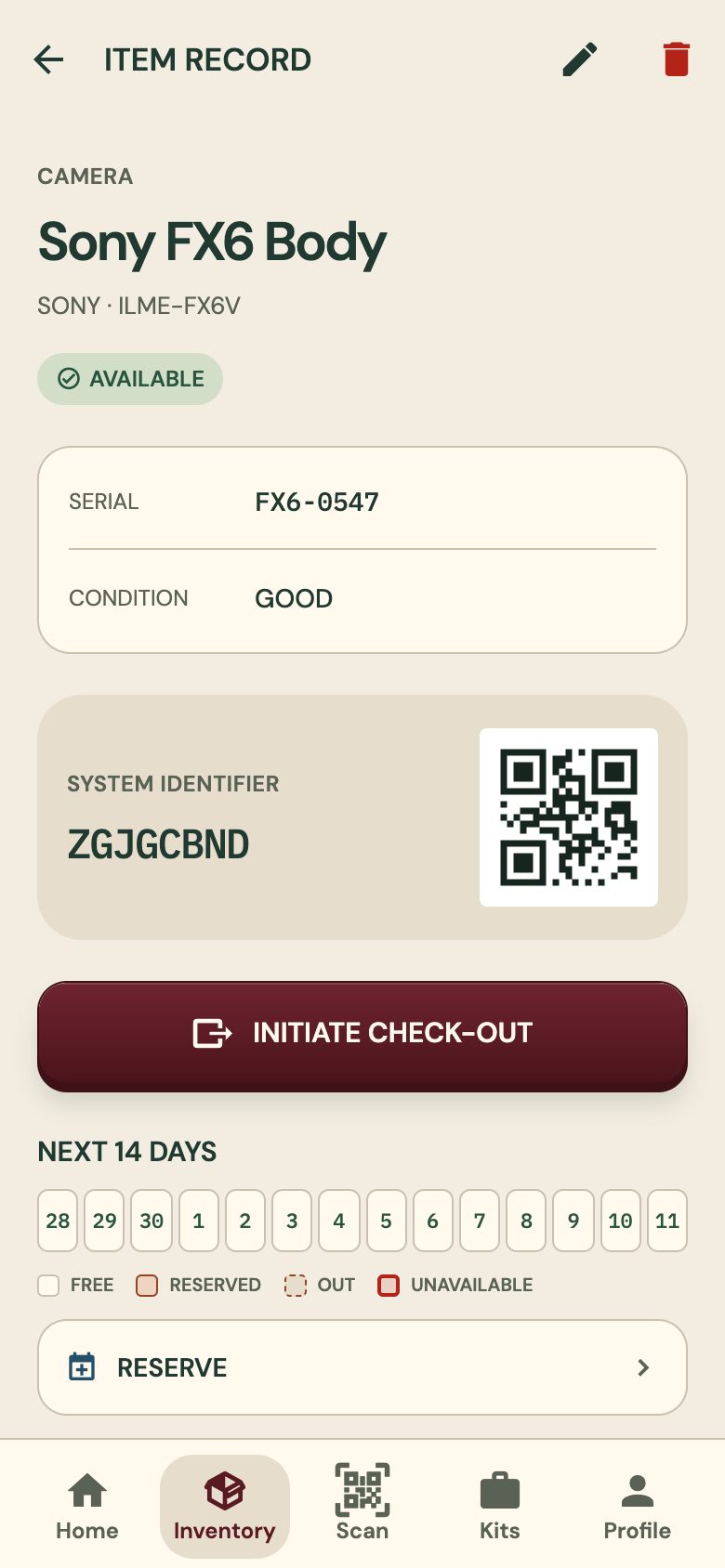
Each item has its own QR code. Scanning the label with the phone camera opens that item, and anyone who finds it can use the same label to tell you.
- Label sheets are PDFs
- The item’s record shows its QR code and identifier
- No special hardware: a phone camera reads the label
Step 3 of 3
Track it
What you do
Scan an item to open it, then check it out to a crew member. They sign on the screen, and you can add condition photos. Check it back in when it returns.
What happens
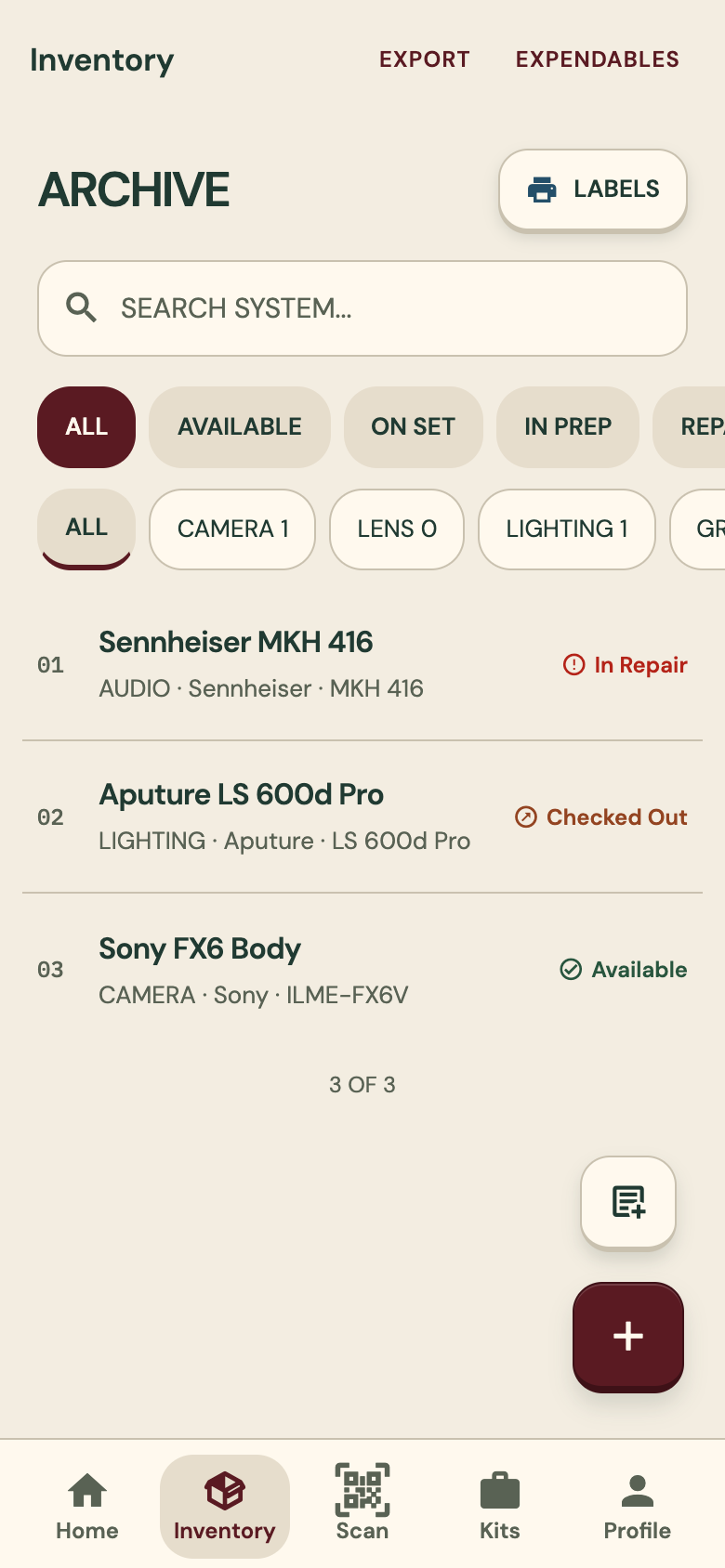
The inventory shows who has what and each item’s status. A kit checks out and in as one, and the reservation calendar refuses overlapping bookings.
- Check-out with a signature drawn on screen
- Optional condition photos
- Kits, reservations, service reminders and a repair log
Along the way
Three things that keep working in the background.
No signal, no problem
Changes are saved on the phone first and sync when it is back online.
Your crew, one list
Invite crew members to your organization. Gear requests come in by shared link.
If something goes missing
A finder who scans the label can tell you, with no app or account. Mark the item lost or stolen.
Your turn
Start with the gear on your shelf.
Open the web app, add your first items and print their labels. Or look at each screen first.