Product tour
The four screens your crew will use most.
These are real screenshots of the GearDomain app, in the theme your device uses. Scroll through them in the order the work happens.
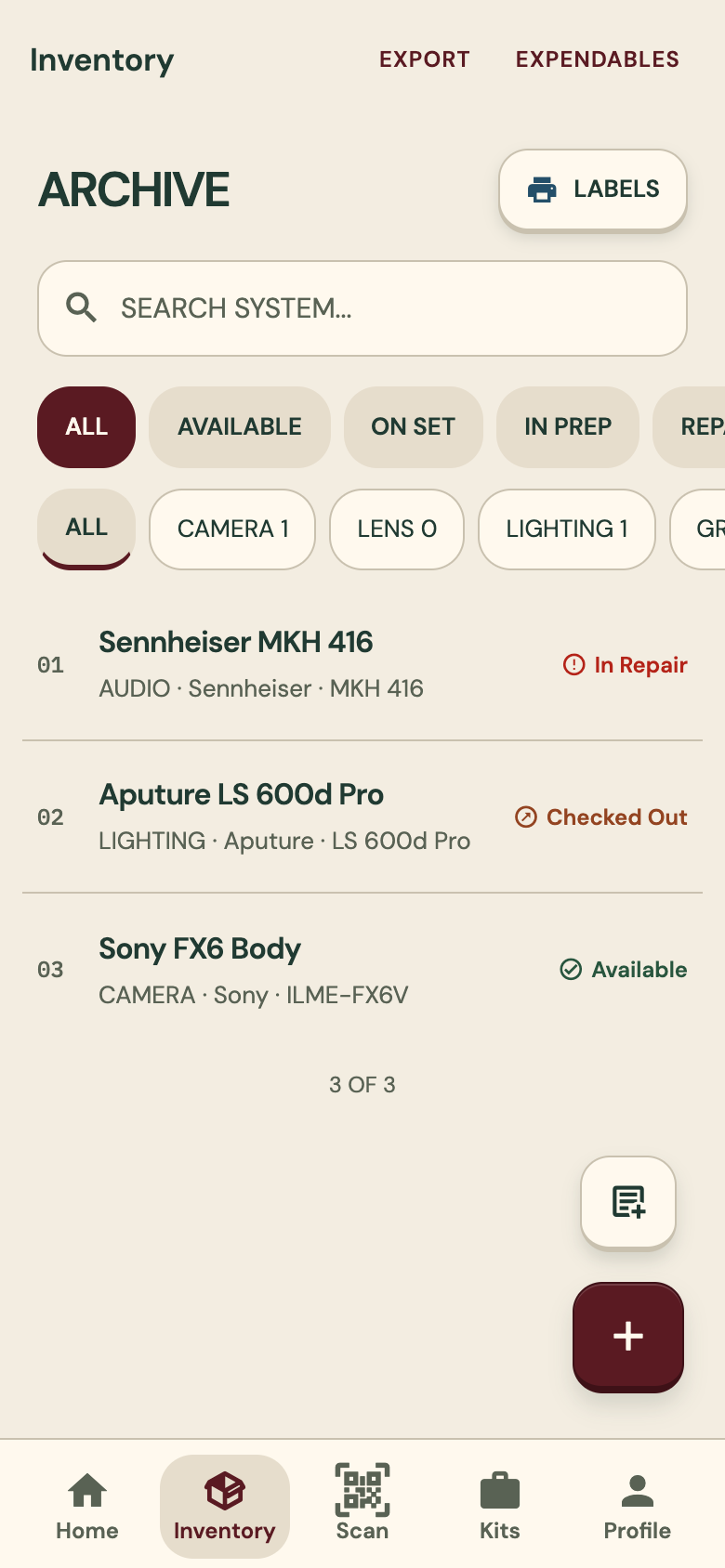
01Inventory
See what is ready and what is out.
The inventory brings every item together with its status, so you know what can go out before anyone asks.
On this screen
- Search the whole inventory
- Filter by status: available, on set, in prep and more
- Filter by category: camera, lens, lighting and more
- Each row shows the category, brand, model and status
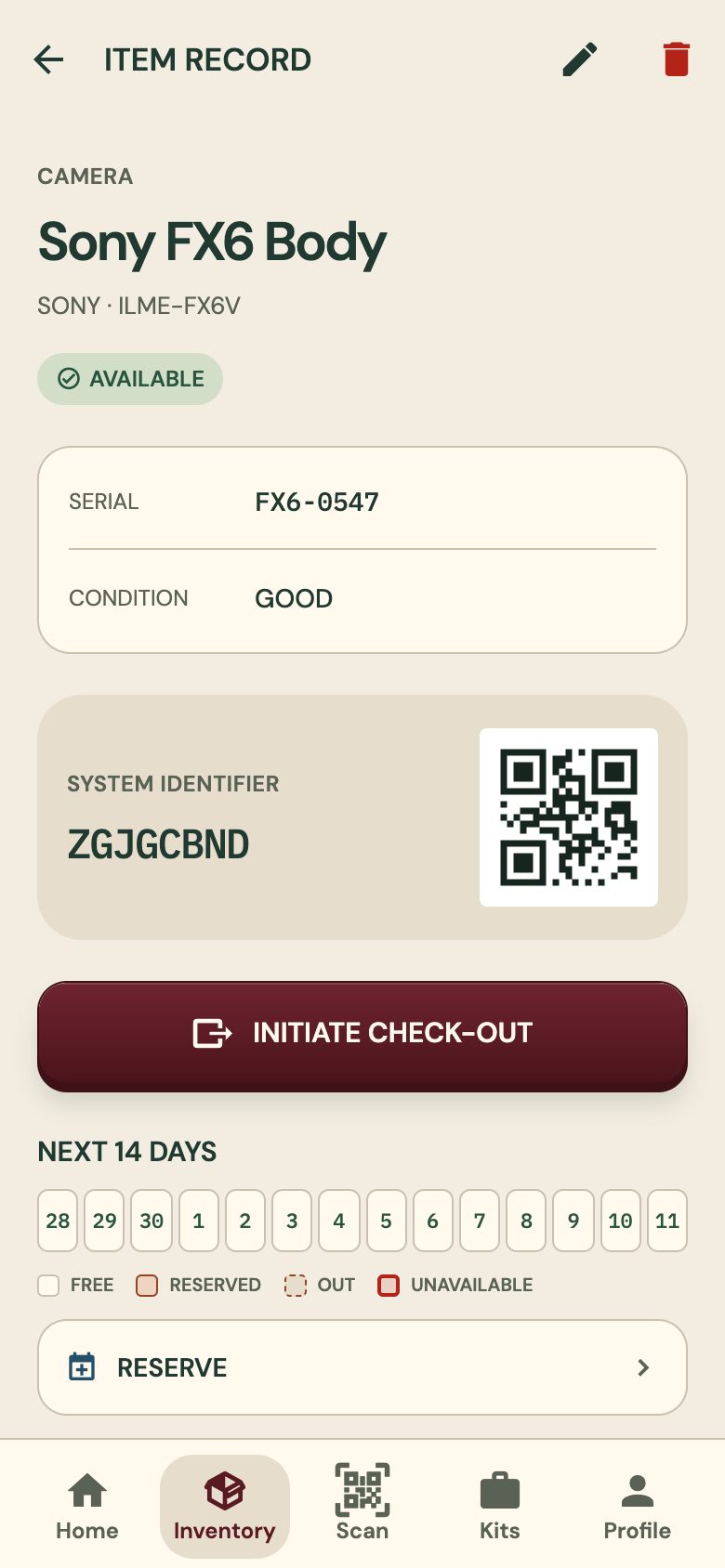
02Item record
Everything about one item, in one place.
Open an item by scanning its label or tapping it in the list. Its record is where check-outs and reservations start.
On this screen
- Category, name, brand and model, and its status
- Serial and condition
- The item’s QR code and identifier
- The next 14 days, and a Reserve button
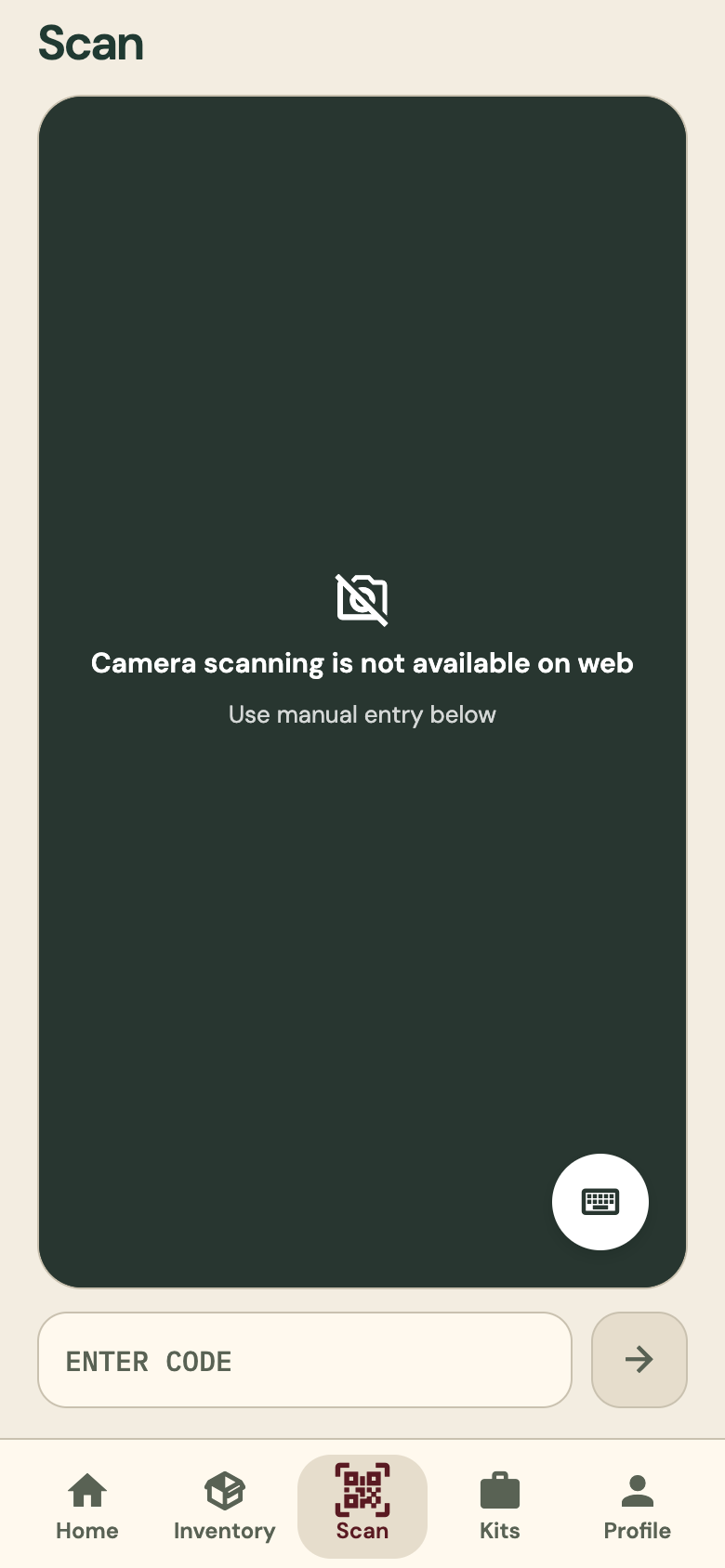
03Scan
From the label to the record.
On a phone, point the camera at an item’s QR label and the item opens. This screenshot is from the web app, where there is no camera scanning, so you type the code instead.
On this screen
- Camera scanning on iPhone and Android
- NFC tags on Android phones that have NFC
- Type a code by hand in the web app
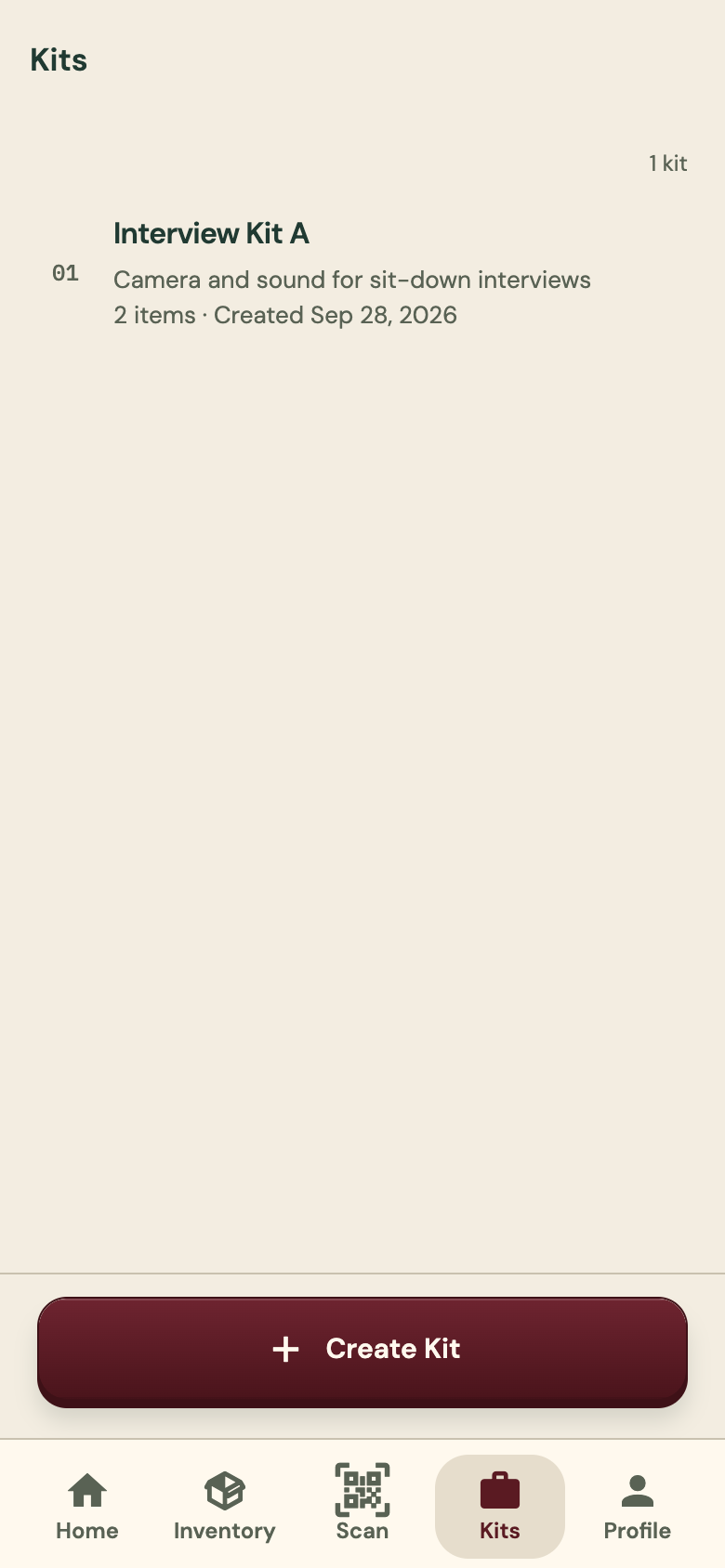
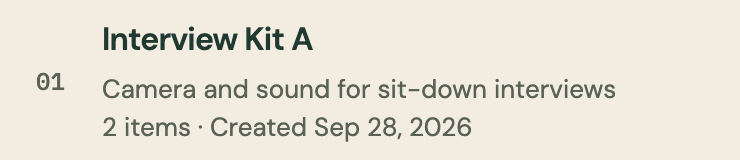
04Kits
Pack it once. Move it together.
A kit groups the items that travel together. Check the whole kit out, or back in, in one go.
On this screen
- Each kit has a name and a short description
- The item count and the date it was created
- Create a kit from the button at the bottom
More screens
Around the rest of the app.
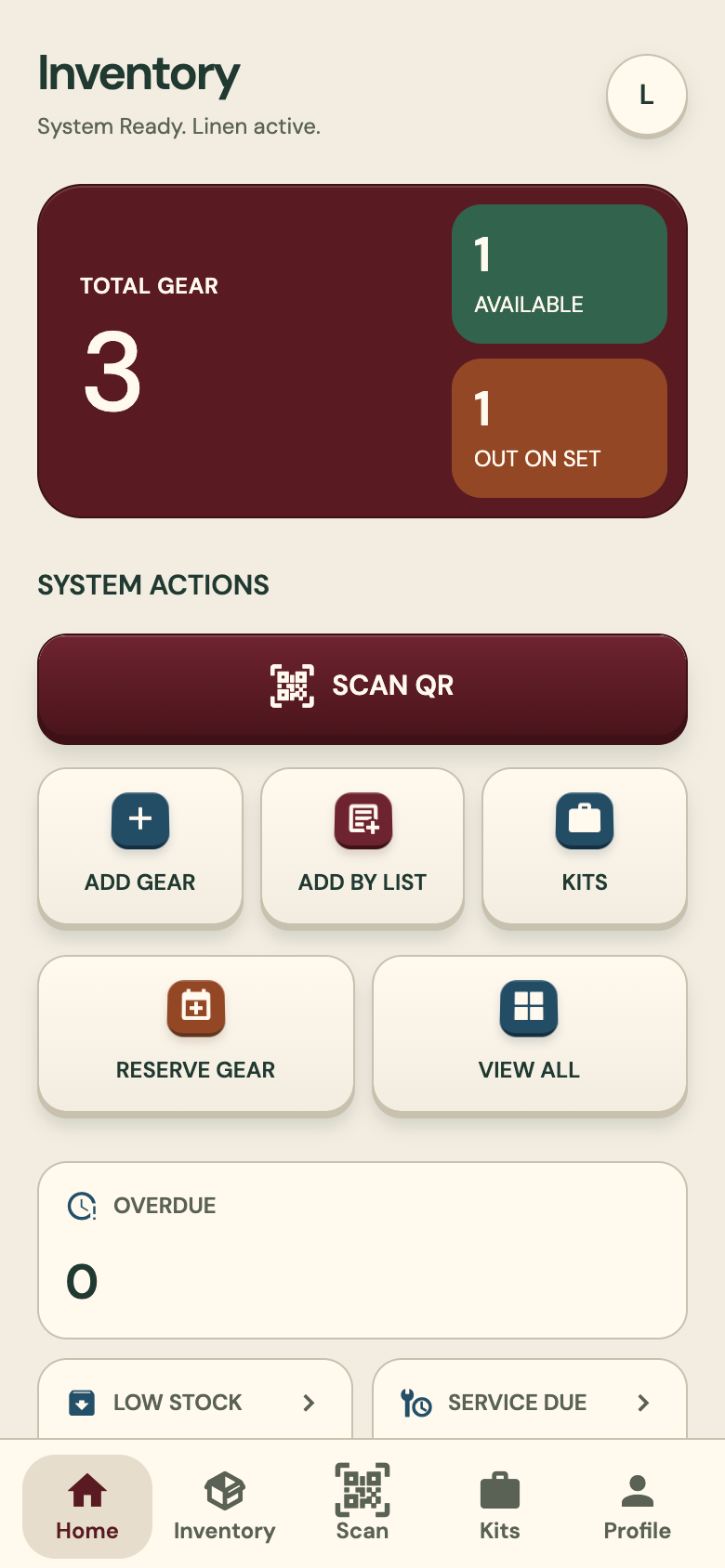
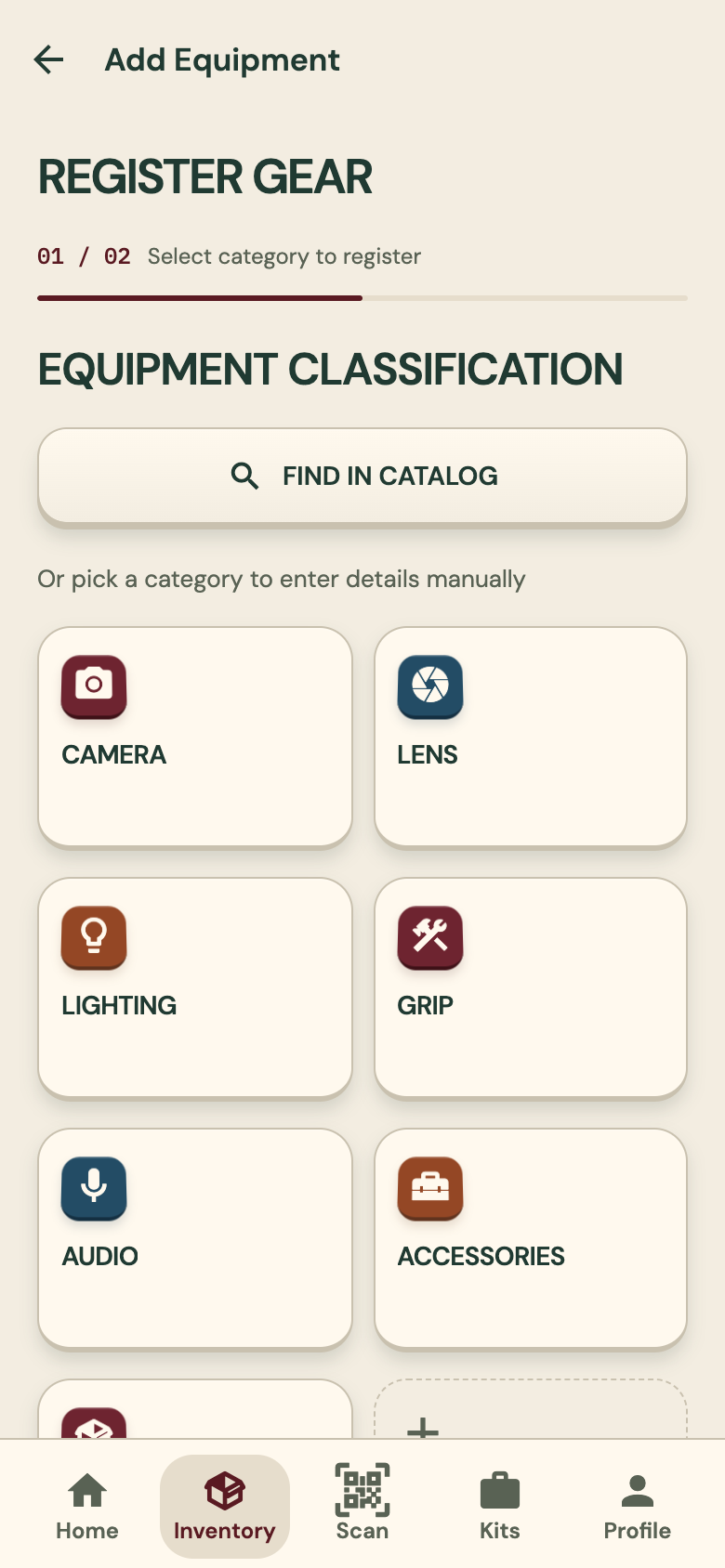
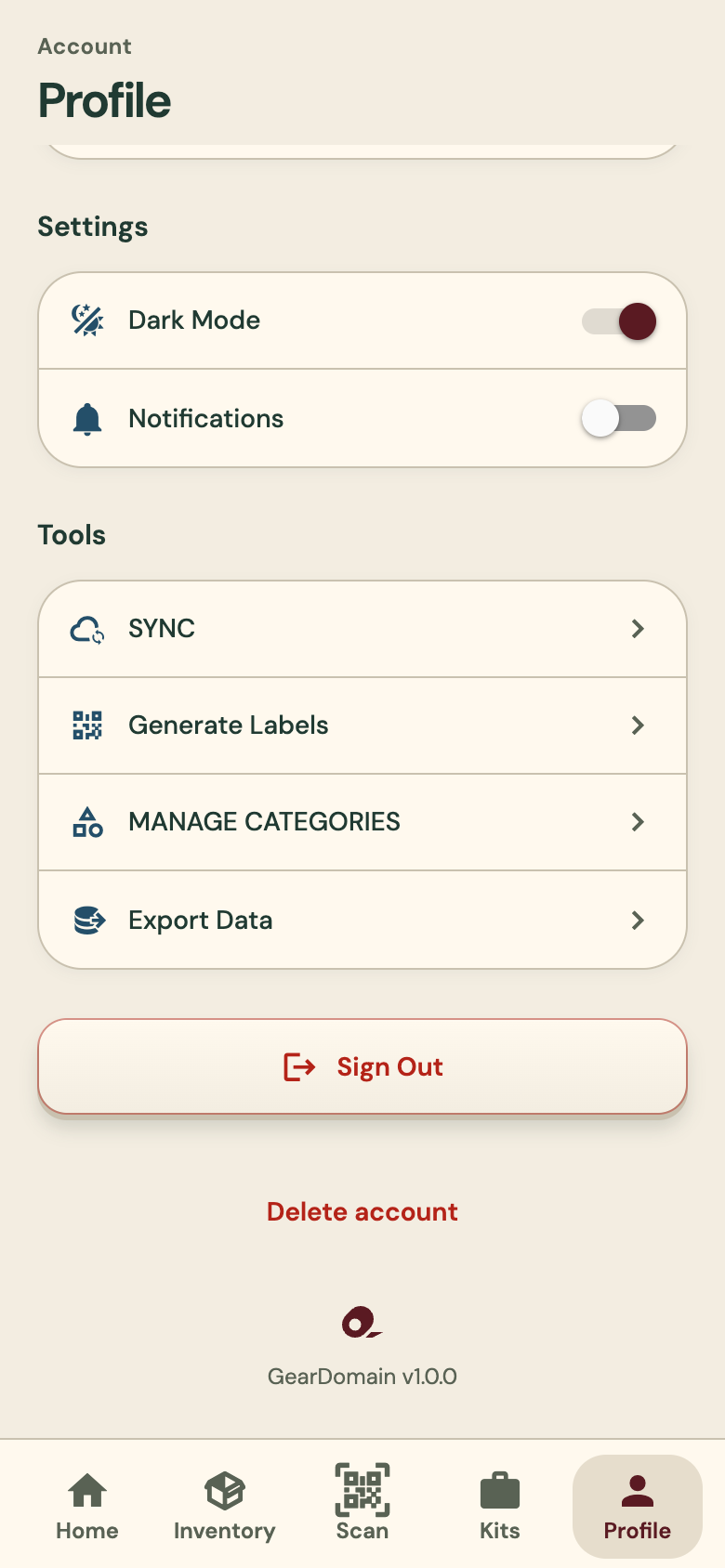
Scroll sideways to see all four.
Talk to Inventory
A spoken list becomes cards.
Say it or type it. Check the cards, then import the list. Fixed reading rules and a gear catalog never guess a brand or model.
You say
“I have a Sony 20 mm 1.8 and a Sony 40 mm 2.5”
You check two cards
- Sony 20 mm 1.8Lens
- Sony 40 mm 2.5Lens